
imported>Dawning (by SublimeText.Mediawiker) |
the mass documenting |
||
| Line 1: | Line 1: | ||
'''<code>InlineImage</code> displays a single centered image (or GIF) with an optional caption underneath, used to illustrate menus and mechanics inside an article.''' | |||
__TOC__ | |||
== Overview == | |||
This template renders one image wrapped in a tidy block with an optional caption below it. The image is responsive (scales down on small screens) and its link is disabled so clicking it does nothing. It is used on walkthrough/explainer pages such as [[Editor Docs]], [[Economy]], [[The Nexus]] and [[Seasonal Events]] to show screenshots and demonstration GIFs. | |||
== Parameters == | |||
{| class="wikitable" | |||
! Parameter !! Required? !! What it does !! Example | |||
|- | |||
| <code>file</code> || Required || Full file name of the image '''including''' its extension (<code>.png</code>, <code>.gif</code>, etc.). || <code>AHSell.png</code> | |||
|- | |||
| <code>size</code> || Optional || Display width. Defaults to <code>525px</code> if omitted. Use any standard MediaWiki size value. || <code>384px</code> | |||
|- | |||
| <code>caption</code> || Optional || Text shown beneath the image. Supports wikitext, including <code><br></code> and links. Omit for no caption. || <code>Press this icon to open the selling menu.</code> | |||
|} | |||
== How to use == | |||
1. Set <code>file</code> to the exact uploaded file name '''with''' its extension — e.g. <code>file=TradingDemonstration.gif</code>. (Unlike {{tl|ButtonHeader}}, this template does NOT add the extension for you.) | |||
2. Optionally set <code>size</code> to a pixel width such as <code>size=384px</code>. Leave it out to get the default <code>525px</code>. | |||
3. Optionally add a <code>caption</code>. You can include line breaks with <code><br></code> and wiki links like <code>[[The Nexus|the Nexus]]</code>. | |||
4. The whole call can sit on a single line; no closing div is needed beyond the template's own <code>}}</code>. | |||
== Copy this == | |||
<syntaxhighlight lang="wikitext" style="overflow:auto;"> | |||
{{InlineImage | |||
|file= | |||
|size= | |||
|caption= | |||
}} | |||
</syntaxhighlight> | |||
==Example | == Example == | ||
{{InlineImage|file=AHSelling.png|size=384px|caption=Players can list items here by placing them in the slots, and selecting a glory amount to sell for in the button directly below the slot.}} | |||
{{InlineImage|file= | |||
<syntaxhighlight lang="wikitext" style="overflow:auto;"> | |||
<syntaxhighlight lang="wikitext" style="overflow: auto;"> | {{InlineImage|file=AHSelling.png|size=384px|caption=Players can list items here by placing them in the slots, and selecting a glory amount to sell for in the button directly below the slot.}} | ||
{{InlineImage|file=|size=|caption=}} | |||
</syntaxhighlight> | </syntaxhighlight> | ||
== Tips & notes == | |||
< | * Include the file extension in <code>file</code>. Writing <code>file=AHSelling</code> (no <code>.png</code>) will not resolve the image. | ||
{{ | * The image link is disabled (<code>link=</code>), so readers cannot click through to the file page — this is intentional for clean walkthroughs. | ||
* The template ends with a left-clear, so following content drops below the image automatically; you do not need your own <code><br clear></code>. | |||
* For animated demos, just point <code>file</code> at a <code>.gif</code> (e.g. <code>TradingDemonstration.gif</code>). | |||
* Related: {{tl|ImageTooltip}} (hover-swap image with a tooltip), {{tl|DynamicGifDisplay}} / {{tl|TabGifDisplay}} (interactive GIF galleries). | |||
Latest revision as of 11:55, 20 June 2026
InlineImage displays a single centered image (or GIF) with an optional caption underneath, used to illustrate menus and mechanics inside an article.
Overview
This template renders one image wrapped in a tidy block with an optional caption below it. The image is responsive (scales down on small screens) and its link is disabled so clicking it does nothing. It is used on walkthrough/explainer pages such as Editor Docs, Economy, The Nexus and Seasonal Events to show screenshots and demonstration GIFs.
Parameters
| Parameter | Required? | What it does | Example |
|---|---|---|---|
file |
Required | Full file name of the image including its extension (.png, .gif, etc.). |
AHSell.png
|
size |
Optional | Display width. Defaults to 525px if omitted. Use any standard MediaWiki size value. |
384px
|
caption |
Optional | Text shown beneath the image. Supports wikitext, including <br> and links. Omit for no caption. |
Press this icon to open the selling menu.
|
How to use
1. Set file to the exact uploaded file name with its extension — e.g. file=TradingDemonstration.gif. (Unlike {{ButtonHeader}}, this template does NOT add the extension for you.)
2. Optionally set size to a pixel width such as size=384px. Leave it out to get the default 525px.
3. Optionally add a caption. You can include line breaks with <br> and wiki links like the Nexus.
4. The whole call can sit on a single line; no closing div is needed beyond the template's own }}.
Copy this
{{InlineImage
|file=
|size=
|caption=
}}
Example
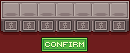
Players can list items here by placing them in the slots, and selecting a glory amount to sell for in the button directly below the slot.
{{InlineImage|file=AHSelling.png|size=384px|caption=Players can list items here by placing them in the slots, and selecting a glory amount to sell for in the button directly below the slot.}}Tips & notes
- Include the file extension in
file. Writingfile=AHSelling(no.png) will not resolve the image. - The image link is disabled (
link=), so readers cannot click through to the file page — this is intentional for clean walkthroughs. - The template ends with a left-clear, so following content drops below the image automatically; you do not need your own
<br clear>. - For animated demos, just point
fileat a.gif(e.g.TradingDemonstration.gif). - Related:
{{ImageTooltip}}(hover-swap image with a tooltip),{{DynamicGifDisplay}}/{{TabGifDisplay}}(interactive GIF galleries).