
Editor Docs
You can find information about editing the Telos Realms wiki here. This includes useful templates, standardization policies, and more.
In-Game Media Standardization
All images, gifs, and videos must follow this format for the online Telos Realms wiki.
Video Settings
FOV: Normal
GUI Scale: 4x
GUI
Your inventory must be clear of everything except for anything you might be demonstrating with.
Scenic images/gifs must be taking in the F1 perspective (No HUD).
If your hotbar or held item is part of the demonstration, then only items needed to demonstrate can be in the hotbar.
Do not have RealmsAddon, Torilhos Addon, or other addon mod GUIs cluttering your screen
The only situation where these should be cluttering your screen is in the case of demonstrating how they work on an explicitly detailed page, concerning their status as unofficial third party mods.
Generally, don't have anything else than what you need to have on screen. Potion level and the like is okay to ignore.
Shaders and Resource Packs
Photon Shaders, Profile: Ultra, Depth of Field ON, Motion Blur OFF (Accessibility), All Clouds OFF. You will not be able to see in realm if you have clouds on.
If your device cannot achieve 30fps on these settings, feel free to go to a lower profile setting like Low, Medium, or High.
Only use the default Telos Realms resource pack.
Game Clients
The only allowed third-party client to be shown is the Feather Client. Logos from other clients are strongly discouraged, unless you are demonstrating something like "How to disable bossbars in RuinEverythingClient 9.0."
Optional Mods
Bobby is a great mod for extending render distance on servers. This lets you take better scenic pictures.
Distant Horizons is similar, but is much less suited for servers and can be finnicky.
Video Compression
Do not upload excessively large videos.
Do not upload painfully compressed videos.
You can use tools like ffmpeg or online compressing tools. It is your responsibility to ensure these compressed versions are not harmful to the eyes.
Here is a good example of a .gif that follows the above rules.
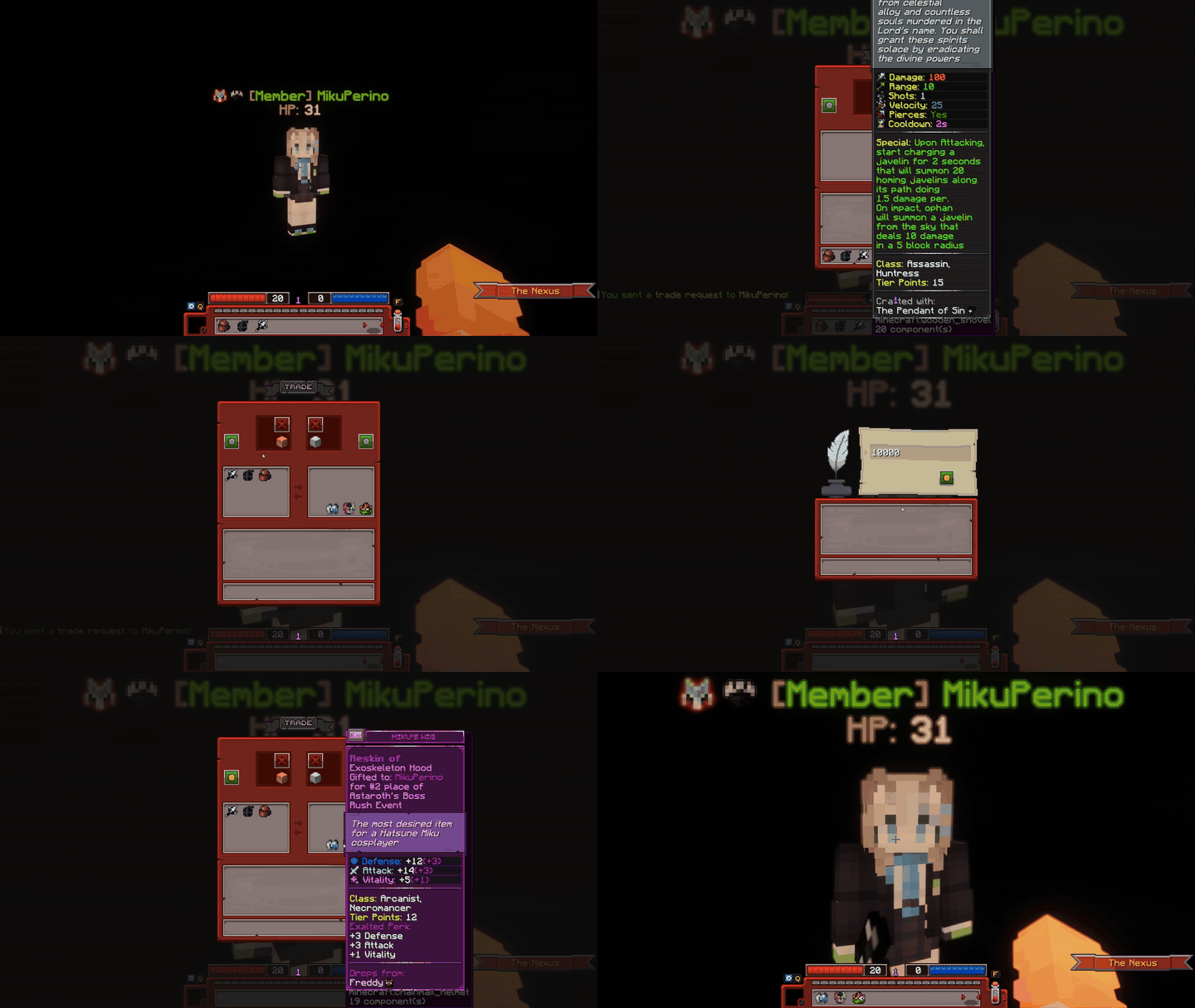
Note that the Minecraft lore of the items in clip are not fully visible.
This is okay if you are not explicitly demonstrating the items.
If you are demonstrating items, please lower GUI scale to 3x to fit the lore.
As of 10/14/2025, there is now a GUI tool created to assist with this process. If you are not part of the internal discord, please message loekthebawz or .willowx.x on discord for a download link.
This was compressed with ffmpeg with the following format, which involves some relatively simple command-line compression. You can find the download for ffmpeg here: [ffmpeg third-party]
You do not have to use ffmpeg, but knowing how to use these commands will vastly help you in your compressing efforts. It is also really really easy even if you have never used something like this before.
.\ffmpeg -i "C:\Users\dawning\Videos\Minecraft\tradingwiki.mp4" -vf "fps=60,scale=720:-1:flags=lanczos,palettegen" palette.png Creates a palette to prevent grainy compression.
.\ffmpeg -i "C:\Users\dawning\Videos\Minecraft\tradingwiki.mp4" -i palette.png -filter_complex "fps=30,scale=720:-1:flags=lanczos[x];[x][1:v]paletteuse=dither=bayer:bayer_scale=5" -loop 0 tradingwiki.gif Creates the gif in the directory the user is cd'd in.
Breakdown of the above input (if you care for it and want to manipulate some flags, otherwise using the general format should be okay.):
.\ffmpeg → Runs the FFmpeg executable in the current directory.
-i "C:\Users\dawning\Videos\Minecraft\tradingwiki.mp4" → Input video file.
-vf "..." → Video filter chain:
fps=60 → Converts video to 60 frames per second (higher FPS gives smoother motion).
scale=720:-1 → Resizes width to 720 pixels; height auto-calculated to maintain aspect ratio (-1).
flags=lanczos → Uses Lanczos resampling for higher-quality scaling.
palettegen → Generates a color palette optimized for GIFs.
palette.png → Output image file containing the generated palette.
-i "C:\Users\dawning\Videos\Minecraft\tradingwiki.mp4" → Input video again.
-i palette.png → Palette generated in step 1.
-filter_complex "..." → Complex filter combining scaling, FPS, and palette:
fps=30 → Sets final GIF frame rate to 30 FPS (slightly lower for smaller file size, higher frame rates can result in slow-motion gifs).
scale=720:-1:flags=lanczos → Resizes video to 720px wide (height auto).
[x] → Stores the scaled video in a temporary label x.
[x][1:v]paletteuse=dither=bayer:bayer_scale=5 → Applies the palette to the video using Bayer dithering, which smooths color transitions.
-loop 0 → Makes the GIF loop infinitely.
tradingwiki.gif → Output GIF file.
File Naming Scheme
Every uploaded file must follow these names. No spaces anywhere; use PascalCase; keep real punctuation (if an item has an apostrophe, include it). The 2D/3D part marks a 2D icon vs a 3D render.
Items
| Kind | Pattern | Example |
|---|---|---|
| Untiered item sprite | Ut-ItemName |
Ut-TitaniumCleaver.png
|
| Tiered item sprite | T#Type (T1–T8 only, no T9+, no EX) |
T5Sword.png
|
| Tiered armour | T# + Heavy/Light/Magic + slot H/C/L/B (Helmet, Chestplate, Leggings, Boots) |
T9LightH.png
|
| Item 3D render | Ut-3DItemName |
Ut-3DArchon'sGlare.png
|
| Shiny variant | ShinyUt-ItemName |
ShinyUt-Calamity.png
|
Bosses, mobs, pets & mounts
2D icon and 3D render share the same prefix.
| Kind | Pattern | Example |
|---|---|---|
| Boss | Boss-2DName / Boss-3DName |
Boss-3DKurvaros.png
|
| Boss bar | Bossbar-Name (keep phase numbers) |
Bossbar-Kurvaros.png, Bossbar-Nebula2.png
|
| Mob (dungeon/biome enemy) | Mob-2DName / Mob-3DName |
Mob-3DBeetleTrooper.png
|
| Pet | Pet-2DName / Pet-3DName |
Pet-3DGelato.png
|
| Pet skin | PetSkin-2DName / PetSkin-3DName |
PetSkin-3DOphanoid.png
|
| Mount | Mount-2DName / Mount-3DName |
Mount-3DSeraphix.png
|
| Mount skin | MountSkin-2DName / MountSkin-3DName |
MountSkin-3DSylvi.png
|
Hub & Trials
| Kind | Pattern | Example |
|---|---|---|
| Hub area / hub NPC | Hub-3DName (keep the "Area" word) |
Hub-3DAuctionHouseArea.png, Hub-3DRagnar.png
|
| Trial unit / object | Trial-3DName (tiers kept, e.g. T1–T3) |
Trial-3DRailgunT1.png, Trial-3DTreasureChest.png
|
Dungeons, biomes & general
| Kind | Pattern | Example |
|---|---|---|
| Dungeon key | Key-DungeonName |
Key-FrozenRuins.png
|
| Dungeon portal | Portal-DungeonName + name plate Portal-DungeonNameText |
Portal-SkullCavern.png
|
| Rune | Rune-Name |
Rune-Tenebris.png
|
| Biome image / sprite | Biome-BiomeName# / BiomeSprite-BiomeName |
Biome-Desert1.png
|
| General image / icon | Image-WhatItsFor / Icon-WhatItIs |
Icon-Loot.png
|
| Class sprite | ClassNameSprite |
HuntressSprite.png
|
Legacy
Deprecated/old assets are prefixed Legacy:
LegacyBoss-3DName,LegacyBossbar-NameLegacyPet-2D/3DName,LegacyMount-2D/3DNameLegacyUt-Name/LegacyEx-Name(legacy item sprites),LegacyKey-Name,LegacyPortal-Name
Reskins
HReskin-, CReskin-, VReskin-, CHReskin-, CustomReskin- + the original item name. H/C/V = Halloween, Christmas, Valentine's; Custom = any other purpose.
Templates & Modules
Every custom template and module on this wiki, grouped by purpose. Click doc for full usage, parameters and copy-paste examples.
Infoboxes
| Template | What it does | Docs |
|---|---|---|
{{ItemInfobox}} |
The item card on every weapon, ability and armour entry. | doc |
{{NPCInfobox}} |
The boss / dungeon-enemy card (render, loot table, tier points). {{BossInfobox}} redirects here. |
doc |
Dungeon & biome system
| Template | What it does | Docs |
|---|---|---|
{{Dungeon Link}} |
A dungeon's portal thumbnail as a clickable link. | doc |
{{Dungeon Navbox}} |
Bottom-of-page nav box of all dungeons by Tier Points. | doc |
{{Biome Navbox}} |
Bottom-of-page nav box of all biomes. | doc |
Display & layout
| Template | What it does | Docs |
|---|---|---|
{{ButtonHeader}} |
Collapsible button that opens to reveal any content. | doc |
{{InlineImage}} |
Floated image with a caption that text wraps around. | doc |
{{MP link}} |
An image + label that both link to a page (used on hub pages). | doc |
{{ClassList}} |
A class page's item list, grouped by rarity. | doc |
{{DLog}} |
The styled "D Log" lore box. | doc |
{{Sound}} |
A clickable button that plays a sound clip. | doc |
{{ImageTooltip}} |
An image that shows a tooltip on hover (skill-tree nodes). | doc |
{{DynamicGifDisplay}} |
A display whose GIF swaps based on the hovered item (skill tree). | doc |
{{TabGifDisplay}} |
Tabbed GIF display (currently unused). | doc |
{{Key}} |
Controller / keyboard key icon. | doc |
{{Character icon}} / {{Item icon}} |
Inline character / item icons (wrappers over Link icon; currently unused). | doc · doc |
Skill tree
| Template | What it does | Docs |
|---|---|---|
{{Skill}} / {{SkillHover}} |
Skill-node label / hover label helpers. | doc · doc |
Per-class data: Arcanist/Skill Tree, Assassin/Skill Tree, Huntress/Skill Tree, Knight/Skill Tree, Necromancer/Skill Tree, Samurai/Skill Tree |
The actual skill-tree node layouts (built from ImageTooltip nodes) feeding the Skill Tree page. All follow the same pattern. | doc |
Stats
| Template | What it does | Docs |
|---|---|---|
{{Stat Bar}} |
A coloured stat bar (fixed steps 0–30). | doc |
{{Stat Color}} |
Returns the colour for a named stat. | doc |
{{Stat Table}} |
A 7-row stat table. | doc |
Modules (Lua)
Editors normally use the wrapper templates above; these power them under the hood.
| Module | What it does | Docs |
|---|---|---|
| Module:Infobox | The DRUID engine behind ItemInfobox / NPCInfobox. | doc |
| Module:Equipment | Equipment list/rendering helpers used on class pages. | doc |
| Module:Reskins | Master reskin list; fills "Applicable Reskins" and theme galleries. | doc |
| Module:Shinies | Detects and renders shiny item variants. | doc |
| Module:Sound | Builds the {{Sound}} play button. |
doc |
| Module:Navbox | The navbox engine behind Dungeon/Biome navboxes. | doc |
| Module:ArgsUtil | Argument-handling helper for other modules. | doc |
| Module:Template link | Powers {{Tl}} / template-link formatting. |
doc |
List of Useful Classes
A large amount of CSS is applied through classes (and you should not be using style="" often!!!!).
You can find a list of these classes and what they do here. Feel free to expand this list.
- hoverbox | Adds a hover effect to emphasize what the user is looking at. This section is currently using one.
- pre-dungeon | Adds a shadow effect to emphasize the text. The "In-Game Media Standardization" section on this page uses this.
A Note on Legacy Content
Keeping up with the game's texture changes, boss changes, and more is hard. If you find something that is outdated or wrong, but do not wish to fix it yourself or are unable to, PLEASE bring up these issues to loekthebawz or .willowx.x on Discord.